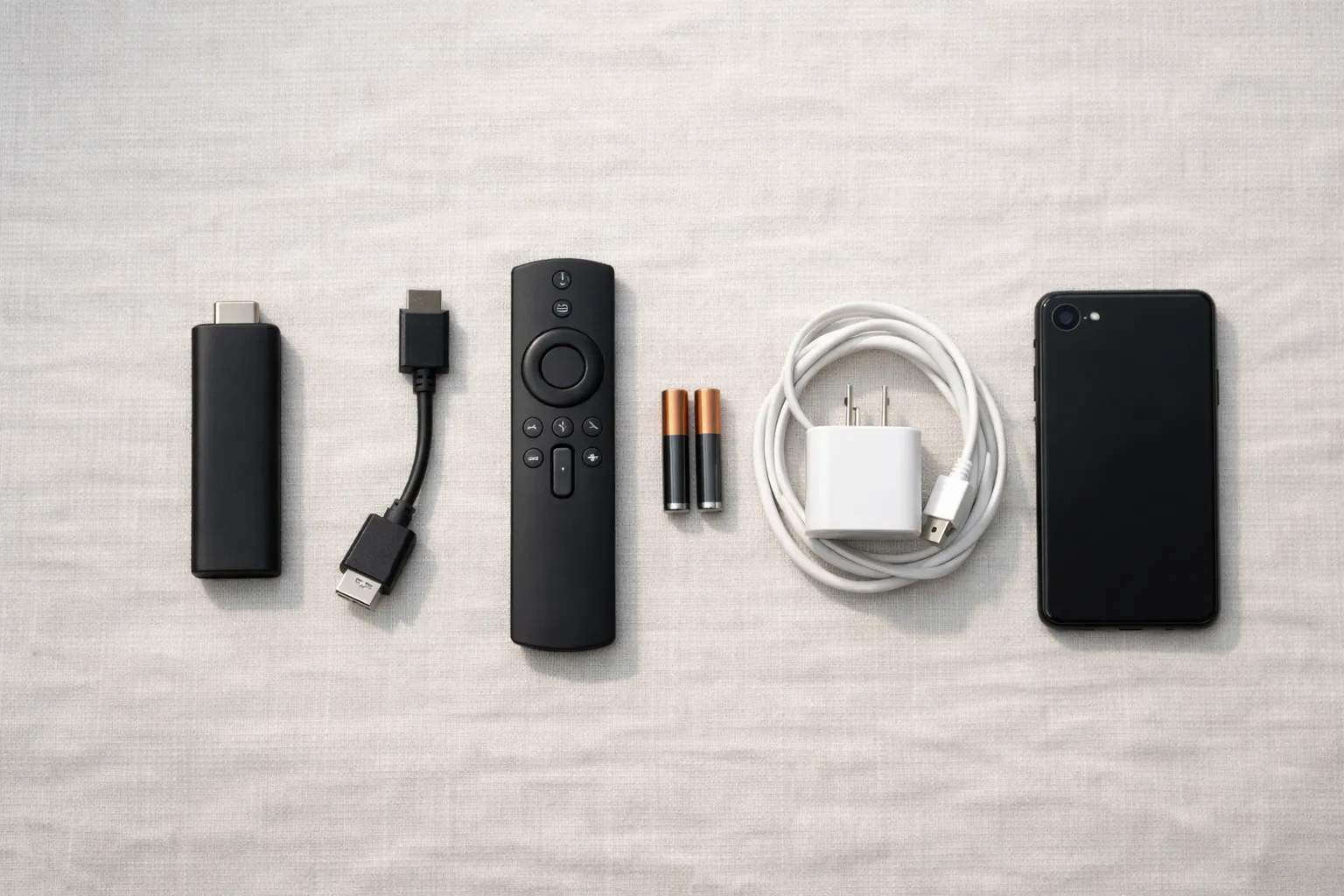
Who is writing: we sell Vivimate, an IPTV subscription, and we make none of the apps on this page. App details come from each developer's own site or store listing, read on November 7, 2026. We didn't install them on every device for this guide, so the tables show where to start, not which app is best. Each device has a fuller guide of its own, linked below.
Three parts every IPTV setup needs
People often expect IPTV to arrive as an app with the channels inside. It doesn't. Your provider supplies a login; the player app and the internet connection are yours. Once all three are in place, the result looks the same on a TV, a tablet or a laptop.
Find your device and its player
Start with the screen you'll watch most. The player changes with the device; the login stays the same everywhere.
| Device | Start with | Where it comes from | Full guide |
|---|---|---|---|
| Fire TV Stick (Fire OS) | TiviMate | Downloader app, not Amazon's store | Firestick IPTV setup |
| Fire TV on Vega OS | No sideloaded player | Can't install apps from outside the store | Check your model first |
| Android TV, Google TV, Nvidia Shield | TiviMate | Google Play on the TV | Android TV IPTV setup |
| Chromecast with Google TV | TiviMate | Google Play on the device | Google TV and Chromecast setup |
| Apple TV | UHF or IPTVX | App Store (tvOS 17 or 16 and later) | Apple TV IPTV setup |
| iPhone and iPad | UHF or IPTVX | App Store (iOS 16 and later) | iPhone and iPad IPTV setup |
| Samsung smart TV | Smart IPTV or IPTV Smarters | Samsung's app store (Tizen 6.5+ for Smart IPTV) | Samsung TV IPTV setup |
| LG smart TV | IPTV Smarters or Smart IPTV | LG Content Store (webOS 3.0+ for Smart IPTV) | LG TV IPTV setup |
| Roku | No player of its own | Mirror from a phone, or add a device | Roku workarounds |
| Windows PC | IPTV Smarters | The developer's download page | Windows IPTV setup |
| MAG box | No app: a portal | Portal URL plus your MAC address | MAG box IPTV setup |
On a Mac, UHF and IPTVX both list desktop versions that need an Apple M1 chip or later. Kodi has its own route, set out in adding IPTV to Kodi. For an Enigma2 or Formuler box, message us and we'll send the matching details.
What each app's own page says
- TiviMate. The Google Play listing says it's built for Android TV and remote control, isn't optimized for phones or tablets, and accepts M3U, Xtream Codes and Stalker Portal. Our TiviMate setup walkthrough covers it step by step.
- UHF. Its App Store page asks for tvOS 17 or later on Apple TV and iOS 16 or later on iPhone, and names Xtream.
- IPTVX. Its App Store page asks for tvOS 16 or later and iOS 16 or later, and names the Xtream API.
- IPTV Smarters. The developer's download page offers Android TV, Windows and Mac downloads and points LG and Samsung owners to their TV's store. It doesn't name a login type, so check the app's sign-in screen.
- Smart IPTV. Its site lists Samsung Tizen 6.5 or later and LG webOS 3.0 or later and says no channels are included. It doesn't state an input format there, so ask us for an M3U link if the app needs one.
How to set up IPTV, step by step
- Request a login. For Vivimate, message us on WhatsApp for the free 24-hour trial; no card is asked for, and the details come back in the chat, usually within minutes.
- Install the player. Use the source in the table, and check the developer name on the listing first; many IPTV apps have look-alike names.
- Add the login. Look for an option such as add playlist, add user or login with Xtream. Enter the server URL, username and password exactly, including any port number at the end of the URL.
- Wait for the list, then the guide. Channels arrive first; the TV guide can lag by a few minutes on a long list.
- Run a real test. Play a live channel you watch, at the time you usually watch it, and open one on-demand title. That checks the login, the app and the connection in one go.
Which login form to choose
Most problems when people install IPTV start at the sign-in screen, where an app offers several forms. Vivimate sends Xtream details by default; the other two are available from support.
Our Xtream Codes setup explainer goes deeper into that format, and MAG owners should follow the MAG box portal guide.
If the setup doesn't work
| Problem | Usual cause | What to try |
|---|---|---|
| The app won't install | Device software older than the listing needs, or a Vega OS Fire TV | Compare your version with the listing, or pick another app from the table. |
| The login is refused | A typing slip, or a trial or plan that has ended | Paste the details again, then see our login help page or message us. |
| Channels appear, the guide doesn't | Guide data is still downloading | Give it a few minutes, then refresh the guide in the app. |
| Pictures stop and start | Connection or Wi-Fi, most often | Test the speed where the TV sits and use a cable if there's a port. |
| A second screen won't play | More screens than the plan covers | Stop one stream, or choose a version with more devices. |
More detail: Vivimate login help, a TV guide that won't load and the internet speed IPTV needs. If none of that fits, send us your device, app and the error on WhatsApp; a person replies 24/7 and can walk through it with you.
Before you pay for Vivimate
The trial is the real installation test, because it runs on your own device and your own connection. Plans are prepaid, with no contract and no auto-renewal, in 1, 2, 3 or 4 device versions:
| Plan | One device | Two devices |
|---|---|---|
| 1 Month | $19.99 | $31.98 |
| 3 Months | $29.99 | $47.98 |
| 6 Months | $39.99 | $63.98 |
| 12 Months + 2 free | $69.99 | $111.98 |
Finish setup during the free 24-hour IPTV trial: our 7-day money-back guarantee covers a first purchase when a service problem you report can't be fixed, and problems with your device, the app setup or slow home internet are excluded. We don't promise any particular channel or event, so search the trial's guide for what you watch. All options are on Vivimate plans and prices.
Frequently asked questions
What is the easiest IPTV setup for a beginner?
An Android TV or Google TV device with TiviMate from Google Play is the most direct route, because the app installs from the TV's own store and takes an Xtream login. Apple TV with UHF or IPTVX is similar. Fire TV sticks and Roku need extra steps.
Do I have to buy a box to install IPTV?
Usually not. A smart TV, streaming stick, phone, tablet or computer can all work as long as a player app runs on it. Check the device table first; a Roku or a Fire TV on Vega OS is where people most often need another device.
Is an Xtream login different from an M3U link?
Yes. An Xtream login has three parts: a server URL, a username and a password. An M3U link is one web address for the whole playlist. Choose Xtream whenever the app offers it. Vivimate can also send M3U, MAG or Enigma2 details on request.
Can one IPTV login go on several devices?
You can add it to as many devices as you like, but only as many can play at once as your plan covers. Vivimate plans come in 1, 2, 3 or 4 device versions, so match the version to the screens that play at the same time.
Does the player app cost extra?
Some apps are free and some charge for extra features. Any fee inside a player app is paid to its developer, not to Vivimate, and it never adds channels. Our plan prices cover the subscription only.
Sources
Read November 7, 2026: UHF on the App Store, IPTVX on the App Store, TiviMate on Google Play, IPTV Smarters downloads and Smart IPTV. Speed figures: our own speed guide. Vivimate plans, trial, devices and refund terms: our pricing and refund policy pages.
Couldn't read: Roku's own screen-mirroring help article, so the Roku row is a workaround, not Roku's instructions.
New to the service? Start with what Vivimate IPTV is — what it includes, what it costs and how to set it up.